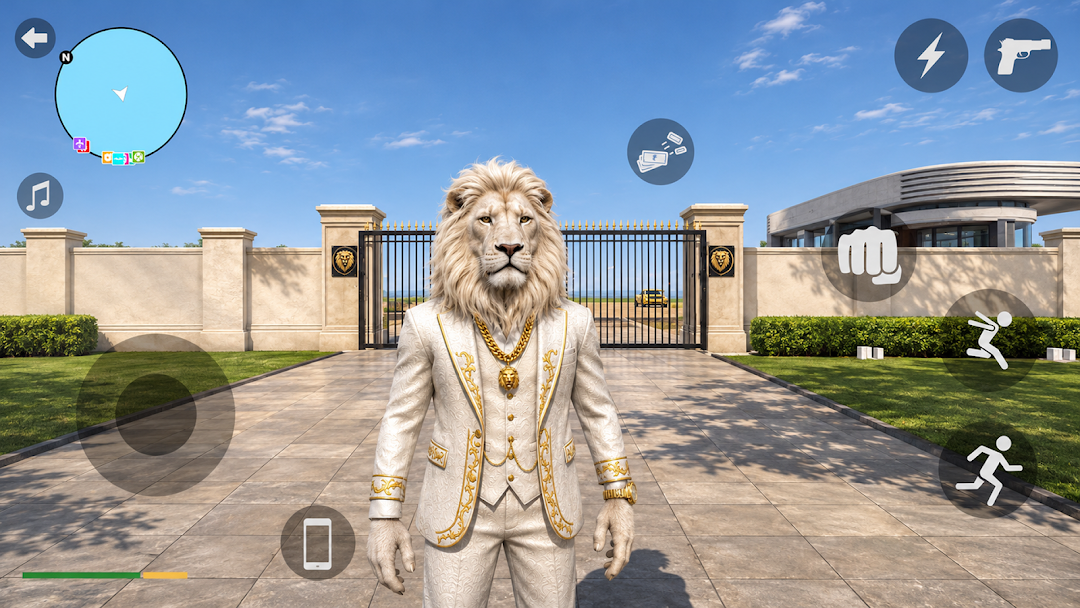

Can You Play Sheru Bhai Game on PC or Laptop?
Yes—through a trusted Android emulator. Neither Skorax (Sheru Bhai Life Simulator Game) nor ONLYTECH SOLUTIONS (Sheru Bhai Aura: Royal City) has released an official native Windows .exe or macOS installer. Instead, PC and laptop players run the exact official Google Play Store Android app inside BlueStacks or LDPlayer, unlocking full-screen graphics, higher frame rates, and keyboard-and-mouse driving controls.
Security Warning: Avoid any third-party website offering a "Sheru Bhai Game PC Free Download .EXE" or cracked ZIP archive. Those files are not official releases and frequently bundle adware or browser hijackers. Always install via Google Play inside a reputable emulator.
Step-by-Step: How to Install Sheru Bhai Game on Windows PC
Option 1: BlueStacks 5 (Best for Overall Stability & Windows 10/11)
- Download BlueStacks 5 from its official website (
bluestacks.com) and complete the standard installer. - Launch BlueStacks and sign in to the built-in Google Play Store with your Google account.
- Search for
Sheru Bhai Life Simulator Game(verify developer: Skorax) orSheru Bhai Aura: Royal City(verify developer: ONLYTECH SOLUTIONS). - Click Install and wait for the 3D assets to finish downloading.
- Open the game from the BlueStacks home screen and press
F11for full-screen mode.
Option 2: LDPlayer 9 (Best for Low-End 4GB–8GB RAM Laptops)
- Download LDPlayer 9 from its official website (
ldplayer.net) and install it on your Windows PC. - Open System Apps -> Play Store inside LDPlayer and sign in with your Google account.
- Search for your preferred Sheru Bhai build (see our Skorax vs ONLYTECH comparison if unsure) and click Install.
- In LDPlayer Settings -> Advanced, allocate at least 2 CPU cores and 3072 MB (3 GB) RAM for smooth 60 FPS driving and helicopter flights.
What Are the Best PC Keyboard Controls for Sheru Bhai Game?
Both BlueStacks and LDPlayer let you map on-screen touch controls to your keyboard in under a minute using the Controls Editor (Ctrl + Shift + A in BlueStacks):
| Action | Recommended Key | Notes |
|---|---|---|
| Walk / Steer Left-Right-Forward-Back | W A S D |
Place the D-Pad overlay over the left virtual joystick |
| Camera Look / Aim | Mouse Drag or Right-Click Pan | Smoother for recording Reels & YouTube gameplay |
| Enter / Exit Vehicle | F |
Place a single tap spot over the car door icon |
| Open Royal Phone | P or Tab |
Instant vehicle summoning without moving your mouse |
| Money Throw Action | E |
Trigger cash-shower clips on command |
| Helicopter Ascend / Descend | Space / Shift |
Map over the up/down altitude buttons |
What PC Specs Do You Need to Run Sheru Bhai Game?
| Spec | Minimum (30 FPS Low/Medium) | Recommended (60 FPS High + Recording) |
|---|---|---|
| OS | Windows 10 (64-bit) | Windows 10 / 11 (64-bit) |
| Processor | Intel or AMD Dual-Core (VT enabled) | Intel Core i5 / AMD Ryzen 5 (4+ cores) |
| RAM | 4 GB system RAM | 8 GB or 16 GB system RAM |
| Storage | 5 GB free disk space | 10 GB free SSD space |
| Virtualization (VT) | Enabled in BIOS (strongly recommended) | Enabled in BIOS |
What About Browser-Based Fan Versions?
A few lightweight web-based fan adaptations occasionally appear on browser gaming portals. While they require no emulator install, they are separate fan creations with much simpler graphics and do not include the full Skorax Royal Hill mansion, wardrobe, or ONLYTECH city map. For the real experience you saw on YouTube and Reels, stick to the official Google Play app inside BlueStacks or LDPlayer.
Want to check if your phone can run the game natively without needing a PC? Try our Phone Compatibility Checker or return to the Sheru Bhai Game Hub.
Player Questions & Tips